Lesson 4 · Parameters & Customization
Lesson 4 · Parameters & Customization
Teacher mode is on. Toggle it off (bottom-right) to preview the student view.
Your square function always draws the same size square. What if you want
a big one, then a small one? You could write square_big and
square_small… but that's the copy-paste problem all over again. The fix is
a parameter — a slot you fill in each time you call the function.
Learning Objectives
By the end of this lesson you will be able to:
- Explain what a parameter is — an input that changes what a function does
- Add a parameter to a Blockly function using the gear icon and the mutator bubble
- Find that parameter in the Variables palette and use its value inside the function body
- Call one function with different arguments to get different results
One function, any size
A parameter is like a blank in a recipe: instead of "add 1 cup of sugar," it says
"add this much sugar," and you decide how much each time you cook. For our square
function, the blank is the side length — we'll name the parameter side_length:
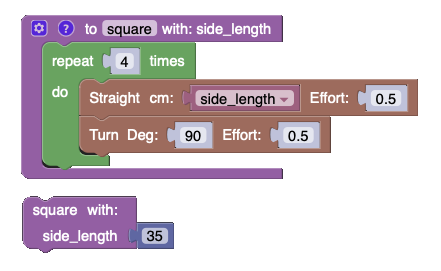
See how the Straight block's cm slot holds the parameter instead of a fixed
number, and the call at the bottom fills it in with 35. Now one function draws
every size — just pass a different value each time you call it:
call square (side_length: 35)     → medium
call square (side_length: 60)     → big
call square (side_length: 20)     → small
Getting there takes two moves that aren't obvious from looking at the blocks: first you add the parameter to the function, then you use its value inside the body. They happen in two different places, which is why it's easy to do one and forget the other.
Here's the whole build, start to finish — about a minute and a half, no sound. Watch it once for the shape of it, then work through the written steps below at your own pace.
Adding the parameter: the gear icon
Look at the top-left corner of your square definition block. There's a small
blue gear icon. Most blocks don't have one — the gear means "this block can
change shape," and a function's shape is exactly what you're about to change.
1 · Click the gear. A small bubble opens next to the block with its own tiny workspace. In the grey strip on the left of the bubble is a block that says input name: x. To its right is a block labelled inputs with an empty notch inside it.
2 · Drag input name: x into the inputs block. Grab it from the grey strip and
snap it into the notch. Watch the definition block behind the bubble as you let go
— it grows a new row reading with: x. That's your parameter. It already exists;
it just has a terrible name.
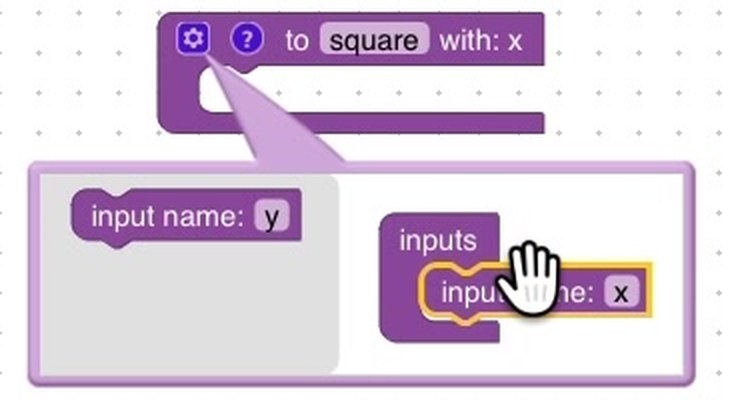
3 · Rename it. Click the word x on the block you just dropped in, type
side_length, and press Enter. Use underscores, not spaces, and pick the name you'd
want in Python later, because in Lesson 10 you'll write this same function in text.
Short names are worth a thought here: the name rides along on the definition, on
every call block and on the variable block you'll drag into the body, so a long one
makes for wide blocks.
4 · Close the bubble by clicking the gear again. Your definition now reads to square with: side_length.
Need a second parameter? Open the gear again and stack another input name
block underneath the first. The top-to-bottom order in the bubble is the
left-to-right order of the arguments, so it matters — polygon (sides, side_length) in the next lesson is not the same function as
polygon (side_length, sides).
You click the gear on a function block and drag an 'input name' block into the 'inputs' block. What happens to the function definition?
Using the parameter: the Variables palette
The function now accepts a side length, but the Straight block inside it is still set to a hard number, so nothing has actually changed yet. You need a block that says "whatever value was passed in" — and that block is waiting in the palette.
Open the Variables category, near the bottom of the palette. Past Create variable… and the set and change blocks, there's a small rounded block named side_length. Adding the parameter created it; you don't have to make it.
Every variable block carries a dropdown arrow, so if you grab the wrong one — easy once a project has a few variables with similar names — you can switch it from the dropdown instead of starting over.
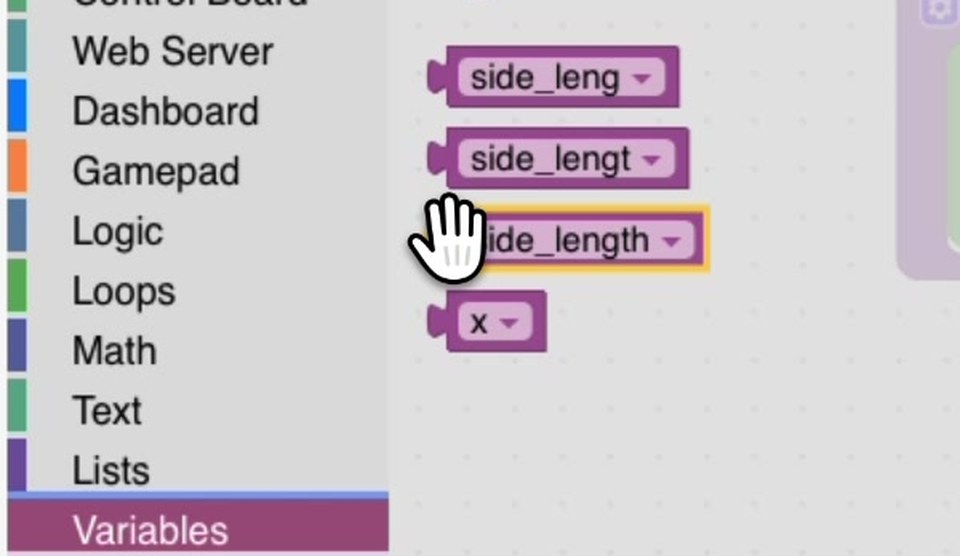
Drag side_length into the cm slot of the Straight block, straight on top of the
number sitting there. The number doesn't pop out and it isn't deleted — it's tucked
underneath, and it comes back if you ever pull the variable out again.
You can use the same parameter as many times as you like inside the function.
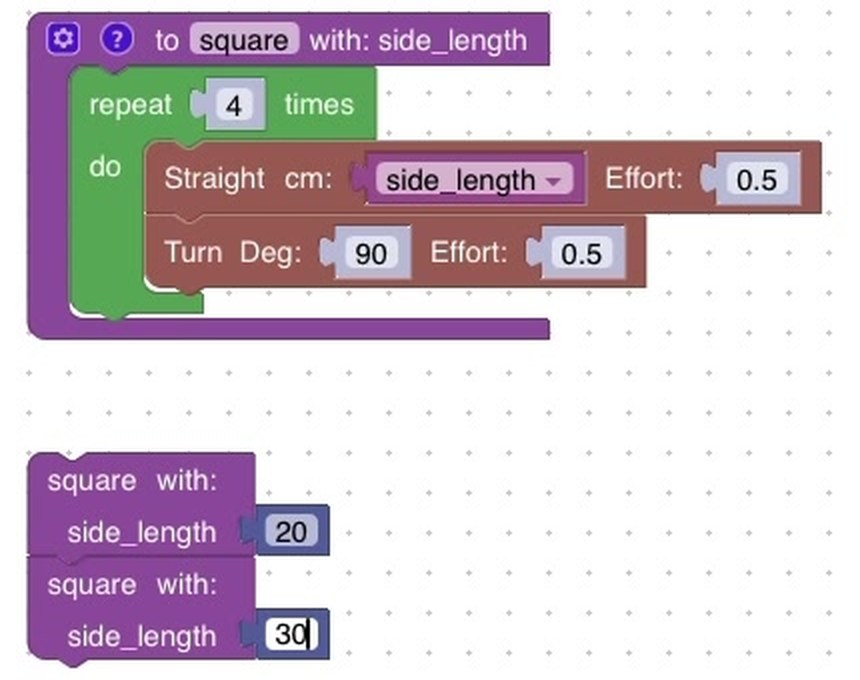
Now the calls. Open the Functions category and the call block there has changed
shape too — it reads square with: side_length and carries a socket for the value.
Drag one out, type 20 into the socket, drag out a second and type 30, and snap
them together into a stack.
Inside the function body, where do you get a block that holds the parameter's value?
Parameter vs. argument
Two words that sound similar and trip everyone up:
- Parameter — the name in the definition: the
side_lengthinsquare (side_length). It's the empty slot. - Argument — the value you pass in when you call it: the
50insquare (side_length: 50). It's what fills the slot.
In the call square (side_length: 50), what is the 50?
With square (side_length), calling square (side_length: 35) makes the robot drive each side how long?
Activity · Make your functions flexible
- Add a
side_lengthparameter to yoursquarefunction — gear icon, then the Variables palette — and call it at three different sizes. If all three squares come out identical, you've done the first half and not the second: check what's actually sitting in the Straight block's cm slot. - Do the same for
triangle— one function, any size triangle. - Challenge: add a second parameter,
effort, and use it for the Effort on your Straight and Turn blocks:square (side_length, effort). Then ask yourself whether it earns its keep — next lesson's polygon function takessidesandside_lengthonly, and leaves Effort at0.5.
A function is defined as draw rectangle (length, width). Are draw rectangle (50, 30) and draw rectangle (30, 50) the same?
Real-world connections
Parameters are everywhere you customize something without rebuilding it:
Print dialog
"Copies," "paper size," and "color" are parameters — one print function, many outcomes.
Difficulty settings
Easy / hard is a parameter fed into the same game code to change enemy speed and health.
Motion commands
"Drive to (x, y) at speed s" — real robot commands are functions with parameters just like yours.
Wrap-up
- What does a parameter let one function do? (Behave differently each time, based on the value you pass.)
- Parameter vs. argument? (Parameter = the name/slot; argument = the value you pass in.)
- Why does parameter order matter? (Arguments fill the slots in order.)